Step 5: Adding Cloud Optimized GeoTIFF from Digital Stacks
Live Demo: html/cog_map_step_05.html
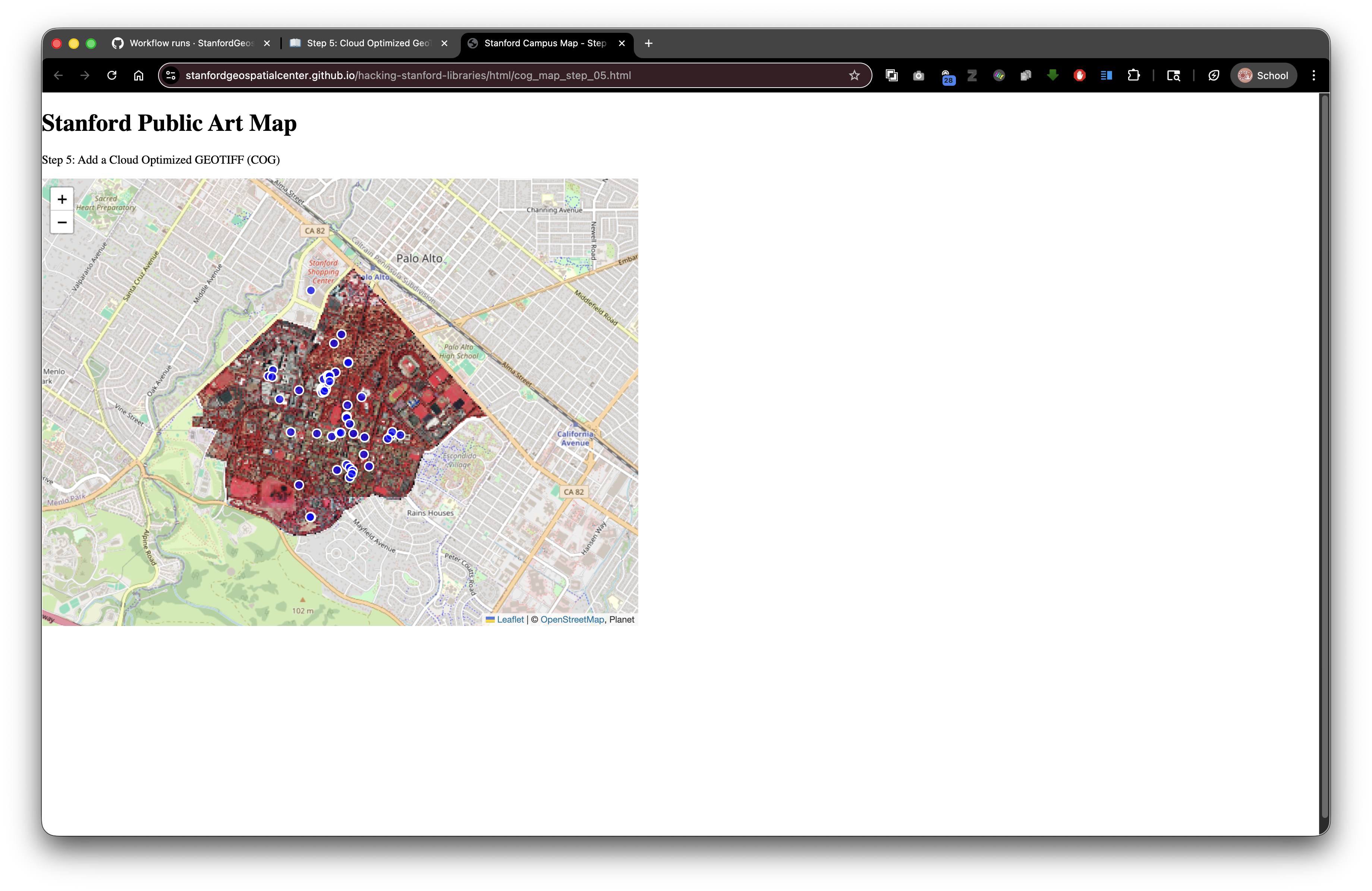
Overview
In this step, we'll add a high-resolution aerial photograph of Stanford campus, served directly from the Stanford Digital Repository through the Digital Stacks API.
Learning Objectives
- Understand what Cloud Optimized GeoTIFFs (COGs) are
- Learn how to access raster imagery from Digital Stacks
- Use the georaster-layer-for-leaflet library
- Understand PURLs and DRUIDs in the Stanford Digital Repository
- Learn about masking/clipping raster data with GeoJSON
What is a Cloud Optimized GeoTIFF (COG)?
A Cloud Optimized GeoTIFF is a special format for storing geographic imagery that:
- Streams efficiently over the internet (you don't need to download the whole file)
- Loads progressively (low resolution first, then higher detail)
- Includes georeferencing (knows exactly where on Earth it belongs)
- Works with standard tools (compatible with all GeoTIFF software)
Think of it like a "smart image" that knows where it is on the map and can stream just the parts you need.
Understanding Digital Stacks URLs
The Anatomy of a Digital Stacks URL
https://stacks.stanford.edu/file/druid:vb564st1676/graduation-stanford_stanford-california_20240616_171600_ssc2_nrg_flat_50cm_rotated-154_large_COG.tif
Let's break this down:
https://stacks.stanford.edu- The Digital Stacks web service/file/- We're requesting a file (not a PURL page)druid:vb564st1676- The DRUID (unique identifier) for this object/graduation-stanford_...COG.tif- The filename within that object
What is a DRUID?
DRUID = Digital Repository Unique Identifier
- A permanent ID for every object in SDR
- Format:
druid:followed by 11 characters (likevb564st1676) - Never changes, even if the object is updated
- Guaranteed to work forever (permanent URLs)
Example DRUID: druid:vb564st1676
vb564st1676is the actual ID- Broken down:
vb+564+st+1676(letters and numbers)
PURLs vs. Digital Stacks URLs
PURL (Persistent URL):
https://purl.stanford.edu/vb564st1676
- Human-readable landing page
- Shows metadata, description, download options
- Good for linking in papers and websites
Digital Stacks File URL:
https://stacks.stanford.edu/file/druid:vb564st1676/filename.tif
- Direct access to the file
- Machine-readable
- Used in code and applications
- Can be loaded directly by mapping libraries
The Complete Code
<!DOCTYPE html>
<html lang="en">
<head>
<base target="_top">
<meta charset="utf-8">
<meta name="viewport" content="width=device-width, initial-scale=1">
<title>Stanford Campus Map - Step 5: Add COG</title>
<link rel="stylesheet" href="https://unpkg.com/leaflet@1.9.4/dist/leaflet.css" integrity="sha256-p4NxAoJBhIIN+hmNHrzRCf9tD/miZyoHS5obTRR9BMY=" crossorigin=""/>
<script src="https://unpkg.com/leaflet@1.9.4/dist/leaflet.js" integrity="sha256-20nQCchB9co0qIjJZRGuk2/Z9VM+kNiyxNV1lvTlZBo=" crossorigin=""></script>
<script src="https://unpkg.com/proj4"></script>
<script src="https://unpkg.com/georaster"></script>
<script src="https://unpkg.com/georaster-layer-for-leaflet"></script>
<style>
html, body {
height: 100%;
margin: 0;
}
.leaflet-container {
height: 600px;
width: 800px;
max-width: 100%;
max-height: 100%;
}
</style>
</head>
<body>
<h1>Stanford Public Art Map</h1>
<p>Step 5: Add a Cloud Optimized GEOTIFF (COG) from Digital Stacks</p>
<div id="map" style="width: 800px; height: 600px;"></div>
<script>
// Initialize map centered on Stanford campus
const map = L.map('map').setView([37.427, -122.169], 15);
// Add OpenStreetMap tile layer
const tiles = L.tileLayer('https://tile.openstreetmap.org/{z}/{x}/{y}.png', {
maxZoom: 19,
attribution: '© <a href="http://www.openstreetmap.org/copyright">OpenStreetMap</a>'
}).addTo(map);
// URL to the COG file - using relative path
var url_to_geotiff_file = new URL("collection/stanford_campus_irg.tif", window.location.href).href;
// Parse and display the COG
parseGeoraster(url_to_geotiff_file).then(georaster => {
console.log("georaster:", georaster);
// Fetch mask GeoJSON to clip the raster
fetch("collection/stanford_campus.geojson")
.then(r => r.json())
.then(maskGeojson => {
// Create the raster layer
var layer = new GeoRasterLayer({
attribution: "Planet",
georaster: georaster,
resolution: 128,
mask: maskGeojson
});
// Add to map and zoom to bounds
layer.addTo(map);
map.fitBounds(layer.getBounds());
});
}).catch(console.error);
// Load and display artwork points (from previous step)
fetch('collection/stanford_public_art.geojson')
.then(response => response.json())
.then(data => {
const artworkLayer = L.geoJSON(data, {
pointToLayer: function(feature, latlng) {
return L.circleMarker(latlng, {
radius: 6,
color: 'white',
weight: 2,
fillColor: 'blue',
fillOpacity: 0.7
});
},
onEachFeature: function(feature, layer) {
const props = feature.properties || {};
const title = props.name || 'Artwork';
const artist = props.artist_name;
const type = props.artwork_type;
let popupContent = '<div style="min-width:200px;">';
popupContent += '<b>' + title + '</b><br>';
if (artist) popupContent += '<b>Artist:</b> ' + artist + '<br>';
if (type) popupContent += '<b>Type:</b> ' + type;
popupContent += '</div>';
layer.bindPopup(popupContent);
}
}).addTo(map);
map.fitBounds(artworkLayer.getBounds());
})
.catch(error => console.error('Error loading GeoJSON:', error));
</script>
</body>
</html>
What's New?
1. New JavaScript Libraries
We're adding three new libraries to handle GeoTIFF files:
<script src="https://unpkg.com/proj4"></script>
<script src="https://unpkg.com/georaster"></script>
<script src="https://unpkg.com/georaster-layer-for-leaflet"></script>
proj4: Handles coordinate system transformations (different map projections)
georaster: Reads and parses GeoTIFF files
georaster-layer-for-leaflet: Displays georasters on Leaflet maps
2. Constructing the File URL
var url_to_geotiff_file = new URL("collection/stanford_campus_irg.tif", window.location.href).href;
What this does: Converts a relative path to an absolute URL
Breaking it down:
"collection/stanford_campus_irg.tif"- Relative path to our filewindow.location.href- The current page's full URLnew URL(relative, base)- JavaScript function that resolves relative paths.href- Gets the full absolute URL as a string
Why we need this: The georaster library requires a full URL, not just a relative path.
Example transformation:
- Your HTML is at:
file:///Users/you/project/index.html - Relative path:
collection/stanford_campus_irg.tif - Result:
file:///Users/you/project/collection/stanford_campus_irg.tif
In SDR:
- Your HTML is at:
https://stacks.stanford.edu/file/druid:abc123/index.html - Relative path:
collection/stanford_campus_irg.tif - Result:
https://stacks.stanford.edu/file/druid:abc123/collection/stanford_campus_irg.tif
Using Digital Stacks directly:
var url_to_geotiff_file = "https://stacks.stanford.edu/file/druid:vb564st1676/graduation-stanford_COG.tif";
3. Parsing the GeoTIFF
parseGeoraster(url_to_geotiff_file).then(georaster => {
  console.log("georaster:", georaster);
  // ... more code ...
}).catch(console.error);
What is .then()? This is a Promise - JavaScript's way of handling asynchronous operations (tasks that take time).
Think of it like ordering food:
- You order (call
parseGeoraster()) - You wait (the file downloads and processes)
- Food arrives (
.then()runs with the result) - Something went wrong (
.catch()handles errors)
The georaster object contains:
- Image width and height
- Geographic bounds (where the image belongs on Earth)
- Pixel values (the actual image data)
- Coordinate reference system information
console.log() prints information to the browser's developer console (press F12 to see it).
4. Loading the Mask GeoJSON
fetch("collection/stanford_campus.geojson")
  .then(r => r.json())
  .then(maskGeojson => {
    // Use the mask
  });
What is a mask? A GeoJSON polygon that clips (cuts out) the raster to a specific shape.
Why use a mask? The COG might cover a large area, but we only want to show Stanford campus.
The fetch() function:
- Downloads files from URLs (local or remote)
- Returns a Promise (uses
.then()like above) .json()parses the response as JSON data
Nested .then(): We wait for the GeoJSON to load, then create the layer.
5. Creating the Raster Layer
var layer = new GeoRasterLayer({
  attribution: "Planet",
  georaster: georaster,
  resolution: 128,
  mask: maskGeojson
});
Configuration options:
attribution: "Planet"- Credit for the imagery sourcegeoraster: georaster- The parsed GeoTIFF dataresolution: 128- How many pixels to render (lower = faster but blockier)mask: maskGeojson- Clip the raster to this polygon
Resolution explained:
- Higher numbers (256, 512) = sharper but slower
- Lower numbers (64, 128) = faster but more pixelated
- Try different values to balance quality and performance
6. Adding to Map and Fitting Bounds
layer.addTo(map);
map.fitBounds(layer.getBounds());
.addTo(map) - Displays the layer on the map
map.fitBounds() - Automatically zooms and centers the map to show the entire raster layer
File Structure for SDR Deposit
When depositing to SDR, organize your files like this:
your-sdr-object/
├── index.html (your main HTML file)
├── collection/
│   ├── stanford_campus_irg.tif (the COG)
│   ├── stanford_campus.geojson (mask boundary)
│   └── stanford_public_art.geojson (artwork points)
└── README.md (optional documentation)
All file references in your HTML use relative paths:
fetch("collection/stanford_campus.geojson")
After deposit with DRUID abc123xyz456, files are accessible at:
https://stacks.stanford.edu/file/druid:abc123xyz456/index.html
https://stacks.stanford.edu/file/druid:abc123xyz456/collection/stanford_campus_irg.tif
https://stacks.stanford.edu/file/druid:abc123xyz456/collection/stanford_campus.geojson
Your relative paths keep working!
Referencing External COGs from Digital Stacks
You can also reference COGs from other SDR deposits:
var url_to_geotiff_file = "https://stacks.stanford.edu/file/druid:vb564st1676/graduation-stanford_stanford-california_20240616_171600_ssc2_nrg_flat_50cm_rotated-154_large_COG.tif";
Benefits:
- No need to duplicate large files
- Always access the latest version
- Save storage space
Use case: Build a collection viewer that references imagery from multiple DRUIDs.
Try It Yourself
- Make sure you have the GeoTIFF file in
collection/stanford_campus_irg.tif - Copy the complete code into
step-05.html - Open in your browser
You should see the aerial photograph overlaid on the map!
Troubleshooting
If the image doesn't appear:
- Check the browser console (F12) for errors
- Verify the file path is correct
- Make sure the file exists
- Try using the absolute Digital Stacks URL instead
If the image is too slow:
- Reduce the resolution:
resolution: 64 - Check your internet connection
- The first load is always slower (caching helps after)
The Power of COGs with Digital Stacks
This combination is powerful because:
- COGs stream efficiently - Users don't download the whole file
- Digital Stacks serves reliably - Stanford's infrastructure is robust
- Files are permanent - DRUIDs never break
- Bandwidth is optimized - Only needed tiles are transferred
- Works globally - Fast access from anywhere
Traditional approach (without COGs):
- User clicks "view map"
- Browser downloads 500MB GeoTIFF
- Wait 5+ minutes on slow connection
- Browser might crash with large files
COG approach:
- User clicks "view map"
- Browser fetches just the visible portions (~1-5MB)
- Map appears in seconds
- Smooth experience on any device
What's Next?
In Step 6: Split-Screen Layout with External CSS, we'll reorganize our page to show the map on the left and create space for Wikidata information on the right!
Key Takeaways
- COGs enable efficient streaming of large raster files
- Digital Stacks URLs follow the pattern:
stacks.stanford.edu/file/druid:ID/filename - DRUIDs are permanent identifiers that never change
- Relative paths work perfectly in SDR deposits
- The
new URL()function resolves relative paths to absolute URLs - Promises (
.then()) handle asynchronous operations - Masks clip rasters to specific geographic areas
Common Questions
Q: Can I use my own GeoTIFF?
A: Yes! Use any georeferenced TIF file. Convert to COG format with GDAL for best performance.
Q: How do I get a DRUID?
A: Deposit your files to SDR through the Stanford digital repository system. A DRUID is assigned automatically.
Q: Can I use COGs from other sources?
A: Yes! Any publicly accessible COG works. Try USGS, NASA, or other open data sources.
Q: Why use a mask?
A: Masks improve performance and focus attention on your area of interest.
Previous: Step 4: Add Popups | Next: Step 6: Split Layout