Step 7: Basic Wikidata Fetching
Live Demo: html/cog_map_step_07.html
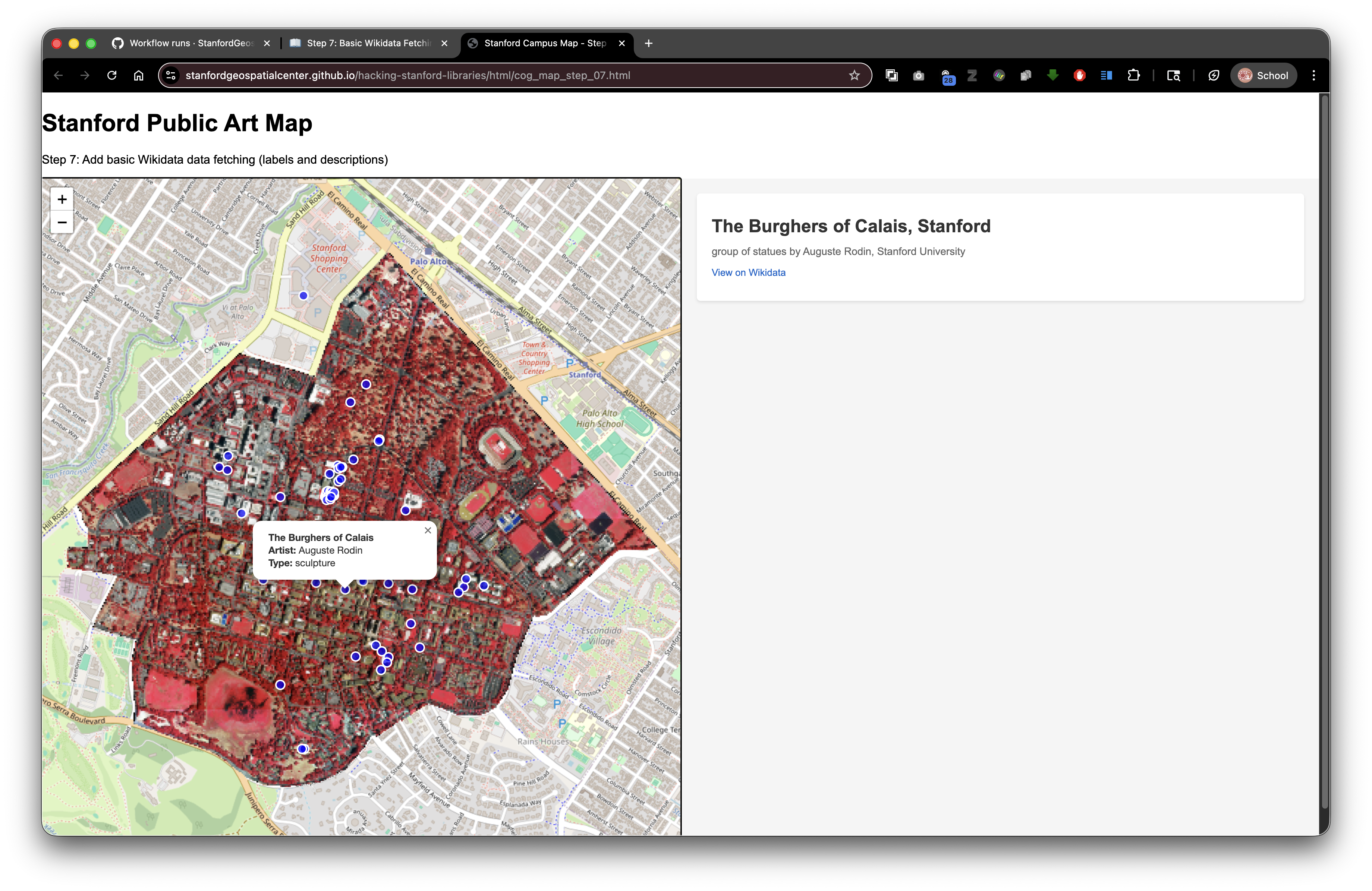
Overview
In this step, we'll connect to the Wikidata API to fetch information about artworks and display it in our right panel. This introduces working with external APIs and asynchronous JavaScript.
Learning Objectives
- Understand what APIs are and how to use them
- Work with asynchronous JavaScript (async/await)
- Fetch data from Wikidata API
- Handle API responses and errors
- Display dynamic content based on user interactions
- Understand JSON data structures
What is Wikidata?
Wikidata is a free, open knowledge base that can be read and edited by both humans and machines.
Think of it as: A massive database of facts about everything - people, places, artworks, historical events, scientific concepts, and more.
Why use Wikidata:
- Free and open - No API keys required
- Multilingual - Data in hundreds of languages
- Comprehensive - Millions of items with structured data
- Linked data - Connections between related items
- Well-maintained - Community of contributors keeps it current
Example Wikidata item: https://www.wikidata.org/wiki/Q47522966 This is "The Sieve of Eratosthenes" sculpture at Stanford.
What is an API?
API = Application Programming Interface
Think of it as: A way for programs to talk to each other. Like a waiter at a restaurant:
- You (your code) make a request
- The waiter (API) takes it to the kitchen (server)
- The kitchen prepares your order (processes the request)
- The waiter brings back your food (API returns data)
The Wikidata API endpoint:
https://www.wikidata.org/wiki/Special:EntityData/Q47522966.json
Breaking it down:
https://www.wikidata.org- The Wikidata server/wiki/Special:EntityData/- The API endpoint pathQ47522966- The Wikidata ID (called a "QID").json- Return the data in JSON format
The Complete Code
<!DOCTYPE html>
<html lang="en">
<head>
<base target="_top">
<meta charset="utf-8">
<meta name="viewport" content="width=device-width, initial-scale=1">
<title>Stanford Campus Map - Step 7: Add Basic Wikidata Fetching</title>
<link rel="stylesheet" href="https://unpkg.com/leaflet@1.9.4/dist/leaflet.css" integrity="sha256-p4NxAoJBhIIN+hmNHrzRCf9tD/miZyoHS5obTRR9BMY=" crossorigin=""/>
<script src="https://unpkg.com/leaflet@1.9.4/dist/leaflet.js" integrity="sha256-20nQCchB9co0qIjJZRGuk2/Z9VM+kNiyxNV1lvTlZBo=" crossorigin=""></script>
<script src="https://unpkg.com/proj4"></script>
<script src="https://unpkg.com/georaster"></script>
<script src="https://unpkg.com/georaster-layer-for-leaflet"></script>
<link rel="stylesheet" href="styles_wikidata.css">
</head>
<body>
<h1>Stanford Public Art Map</h1>
<p>Step 7: Add basic Wikidata data fetching (labels and descriptions)</p>
<div id="container">
<div id="mapWrapper">
<div id="map"></div>
</div>
<div id="wikidata-panel">
<div id="no-selection">Click on an artwork to see Wikidata information</div>
</div>
</div>
<script>
const map = L.map('map').setView([37.427, -122.169], 15);
const tiles = L.tileLayer('https://tile.openstreetmap.org/{z}/{x}/{y}.png', {
maxZoom: 19,
attribution: '© <a href="http://www.openstreetmap.org/copyright">OpenStreetMap</a>'
}).addTo(map);
// Function to fetch and display basic Wikidata content
async function displayWikidataInfo(wikidataId) {
const panel = document.getElementById('wikidata-panel');
try {
// Fetch the Wikidata entity in JSON format
const response = await fetch(`https://www.wikidata.org/wiki/Special:EntityData/${wikidataId}.json`);
const data = await response.json();
const entity = data.entities[wikidataId];
// Check if entity was found
if (!entity) {
panel.innerHTML = '<div id="no-selection">Wikidata not found</div>';
return;
}
// Begin building the HTML content
let html = '<div class="wikidata-content">';
// Extract and display the label (name)
const label = entity.labels.en ? entity.labels.en.value : wikidataId;
html += `<div class="wikidata-label">${label}</div>`;
// Extract and display the description
if (entity.descriptions.en) {
html += `<div class="wikidata-description">${entity.descriptions.en.value}</div>`;
}
// Link to view the full Wikidata page
html += `<div class="wikidata-property"><a href="https://www.wikidata.org/wiki/${wikidataId}" target="_blank" class="wikidata-link">View on Wikidata</a></div>`;
// Close the div and update the panel
html += '</div>';
panel.innerHTML = html;
} catch (error) {
console.error('Error fetching Wikidata:', error);
panel.innerHTML = '<div id="no-selection">Error loading Wikidata information</div>';
}
}
var url_to_geotiff_file = new URL("collection/stanford_campus_irg.tif", window.location.href).href;
parseGeoraster(url_to_geotiff_file).then(georaster => {
console.log("georaster:", georaster);
fetch("collection/stanford_campus.geojson")
.then(r => r.json())
.then(maskGeojson => {
var layer = new GeoRasterLayer({
attribution: "Planet",
georaster: georaster,
resolution: 128,
mask: maskGeojson
});
layer.addTo(map);
map.fitBounds(layer.getBounds());
});
}).catch(console.error);
fetch('collection/stanford_public_art.geojson')
.then(response => response.json())
.then(data => {
const artworkLayer = L.geoJSON(data, {
pointToLayer: function(feature, latlng) {
return L.circleMarker(latlng, {
radius: 6,
color: 'white',
weight: 2,
fillColor: 'blue',
fillOpacity: 0.7
});
},
onEachFeature: function(feature, layer) {
const props = feature.properties || {};
const title = props.name || 'Artwork';
const artist = props.artist_name;
const type = props.artwork_type;
let popupContent = '<div style="min-width:200px;">';
popupContent += '<b>' + title + '</b><br>';
if (artist) popupContent += '<b>Artist:</b> ' + artist + '<br>';
if (type) popupContent += '<b>Type:</b> ' + type;
popupContent += '</div>';
layer.bindPopup(popupContent);
// Add click handler to display Wikidata info
layer.on('click', function() {
if (props.wikidata) {
displayWikidataInfo(props.wikidata);
} else {
document.getElementById('wikidata-panel').innerHTML = '<div id="no-selection">No Wikidata ID available for this artwork</div>';
}
});
}
}).addTo(map);
map.fitBounds(artworkLayer.getBounds());
})
.catch(error => console.error('Error loading GeoJSON:', error));
</script>
</body>
</html>
What's New?
1. Async Functions
async function displayWikidataInfo(wikidataId) {
    // Function body
}
The async keyword marks this as an asynchronous function.
What does asynchronous mean? The function can pause and wait for things (like API requests) without blocking other code.
Think of it like: Ordering food for delivery. You don't stand at the door waiting - you continue with your day and come back when it arrives.
2. The Await Keyword
const response = await fetch(`https://www.wikidata.org/wiki/Special:EntityData/${wikidataId}.json`);
The await keyword pauses the function until the promise resolves (the fetch completes).
Only works inside async functions!
Without await:
const response = fetch(url); // This is a Promise, not the data!
With await:
const response = await fetch(url); // This is the actual response!
3. Template Literals for URLs
`https://www.wikidata.org/wiki/Special:EntityData/${wikidataId}.json`
Template literals (backticks) let you insert variables into strings.
Example:
const wikidataId = "Q47522966";
const url = `https://www.wikidata.org/wiki/Special:EntityData/${wikidataId}.json`;
// Result: https://www.wikidata.org/wiki/Special:EntityData/Q47522966.json
Old way (string concatenation):
const url = 'https://www.wikidata.org/wiki/Special:EntityData/' + wikidataId + '.json';
4. Try-Catch Error Handling
try {
    // Code that might fail
    const response = await fetch(url);
    // More code...
} catch (error) {
    // What to do if something fails
    console.error('Error:', error);
}
How it works:
- JavaScript tries to run the code in the
tryblock - If any error occurs, it immediately jumps to the
catchblock - The
errorvariable contains information about what went wrong
Why use it:
- Network might be down
- API might be unavailable
- Data might be malformed
- Prevents your entire application from crashing
5. Getting Nested Data from JSON
const data = await response.json();
const entity = data.entities[wikidataId];
Wikidata returns complex nested JSON:
{
  "entities": {
    "Q47522966": {
      "labels": {
        "en": {
          "value": "The Sieve of Eratosthenes"
        }
      },
      "descriptions": {
        "en": {
          "value": "sculpture by Mark di Suvero"
        }
      }
    }
  }
}
Accessing nested data:
data.entities                    // Get the entities object
data.entities[wikidataId]       // Get the specific entity
data.entities[wikidataId].labels // Get all labels
data.entities[wikidataId].labels.en // Get English label
data.entities[wikidataId].labels.en.value // Get the actual text
6. Safe Property Access with Ternary Operator
const label = entity.labels.en ? entity.labels.en.value : wikidataId;
The ternary operator: condition ? valueIfTrue : valueIfFalse
This line means:
- If
entity.labels.enexists, useentity.labels.en.value - Otherwise, use the
wikidataIdas a fallback
Why? Some items might not have English labels, so we need a fallback.
Longer version (equivalent):
let label;
if (entity.labels.en) {
    label = entity.labels.en.value;
} else {
    label = wikidataId;
}
7. DOM Manipulation
const panel = document.getElementById('wikidata-panel');
panel.innerHTML = html;
document.getElementById() - Finds the element with that ID
.innerHTML - Sets the HTML content inside that element
Replaces everything inside:
<!-- Before -->
<div id="wikidata-panel">
    <div id="no-selection">Click on an artwork...</div>
</div>

<!-- After setting innerHTML -->
<div id="wikidata-panel">
    <div class="wikidata-content">
        <div class="wikidata-label">The Sieve of Eratosthenes</div>
        ...
    </div>
</div>
8. Adding Click Event Listeners
layer.on('click', function() {
    if (props.wikidata) {
        displayWikidataInfo(props.wikidata);
    } else {
        document.getElementById('wikidata-panel').innerHTML = '<div id="no-selection">No Wikidata ID available</div>';
    }
});
layer.on('click', function() { }) - Attach a click event to this marker
When the marker is clicked:
- Check if it has a
wikidataproperty - If yes, call
displayWikidataInfo()with that ID - If no, show a message saying data isn't available
Understanding Wikidata IDs
Wikidata IDs (QIDs) always start with 'Q' followed by numbers:
Q47522966- The Sieve of Eratosthenes sculptureQ16270988- Gay Liberation sculptureQ5- Human (yes, concepts have IDs too!)
How to find Wikidata IDs:
- Search Wikidata: https://www.wikidata.org/
- Look in OpenStreetMap tags (many features have
wikidatatags) - Check Wikipedia - Wikidata items are linked from Wikipedia pages
In our GeoJSON:
{
  "properties": {
    "name": "The Sieve of Eratosthenes",
    "wikidata": "Q47522966"
  }
}
How the Data Flows
- User clicks on a blue circle marker
- Click handler reads the
wikidataproperty from GeoJSON displayWikidataInfo()is called with the Wikidata ID- API request is sent to Wikidata's servers
- Response arrives with JSON data
- Data is parsed to extract label and description
- HTML is built dynamically with the data
- Right panel is updated with the new HTML
API Rate Limiting
Most APIs have limits on how many requests you can make:
- No authentication required for basic use
- Reasonable rate limits (thousands of requests per day)
- Be respectful - don't hammer the API
Best practices:
- Cache results when possible
- Don't make unnecessary duplicate requests
- Handle errors gracefully
Try It Yourself
- Copy the complete code into
step-07.html - Make sure
styles_wikidata.cssexists - Open in your browser
- Click on any artwork marker
You should see the artwork's name and description appear in the right panel!
Experiments
Test with different Wikidata items:
displayWikidataInfo('Q5');  // Human
displayWikidataInfo('Q2');  // Earth
displayWikidataInfo('Q5083');  // Stanford University
Add more languages:
const labelEn = entity.labels.en ? entity.labels.en.value : '';
const labelEs = entity.labels.es ? entity.labels.es.value : '';

html += `<div>${labelEn}</div>`;
if (labelEs) html += `<div><em>Spanish:</em> ${labelEs}</div>`;
Show the raw JSON data:
console.log('Full Wikidata response:', entity);
Connection to Digital Stacks
This code works perfectly with SDR deposits:
Your local setup:
project/
├── index.html (with Wikidata API calls)
├── styles_wikidata.css
└── collection/
    └── stanford_public_art.geojson (with wikidata IDs)
After SDR deposit (DRUID: abc123xyz456):
- HTML loads from:
https://stacks.stanford.edu/file/druid:abc123xyz456/index.html - GeoJSON loads from:
https://stacks.stanford.edu/file/druid:abc123xyz456/collection/stanford_public_art.geojson
Related resources:
- Stanford Digital Repository: https://sdr.stanford.edu/
- Stanford Libraries APIs: https://api.library.stanford.edu/
- Stanford Geospatial Center: https://gis.stanford.edu/
- Wikidata API calls work from anywhere (external API)
- No changes needed!
Works because:
- External API calls (to Wikidata) work from any domain
- Relative paths (your GeoJSON) work in SDR
- JavaScript runs in the user's browser, not on the server
What's Next?
In Step 8: Wikidata Images, we'll enhance our display by fetching and showing images from Wikimedia Commons!
Key Takeaways
async/awaitmakes asynchronous code easier to read and write- APIs provide structured data accessible via HTTP requests
try/catchhandles errors gracefully- Template literals simplify string construction with variables
- JSON data can be deeply nested - access with dot notation
- Ternary operators provide concise conditional values
- External API calls work from SDR-hosted applications
Common Questions
Q: Do I need an API key for Wikidata?
A: No! Wikidata is completely open and free.
Q: What if the API request fails?
A: The catch block handles it, showing an error message to the user.
Q: Can I use other APIs the same way?
A: Yes! The pattern is similar for most REST APIs. Some require API keys.
Q: Why use async/await instead of .then()?
A: Both work, but async/await is more readable for complex logic with multiple asynchronous steps.
Q: Does this work offline?
A: No, API calls require internet connectivity. You'd need to cache data for offline use.
Previous: Step 6: Split Layout | Next: Step 8: Wikidata Images