Step 8: Wikidata Images
Live Demo: html/cog_map_step_08.html
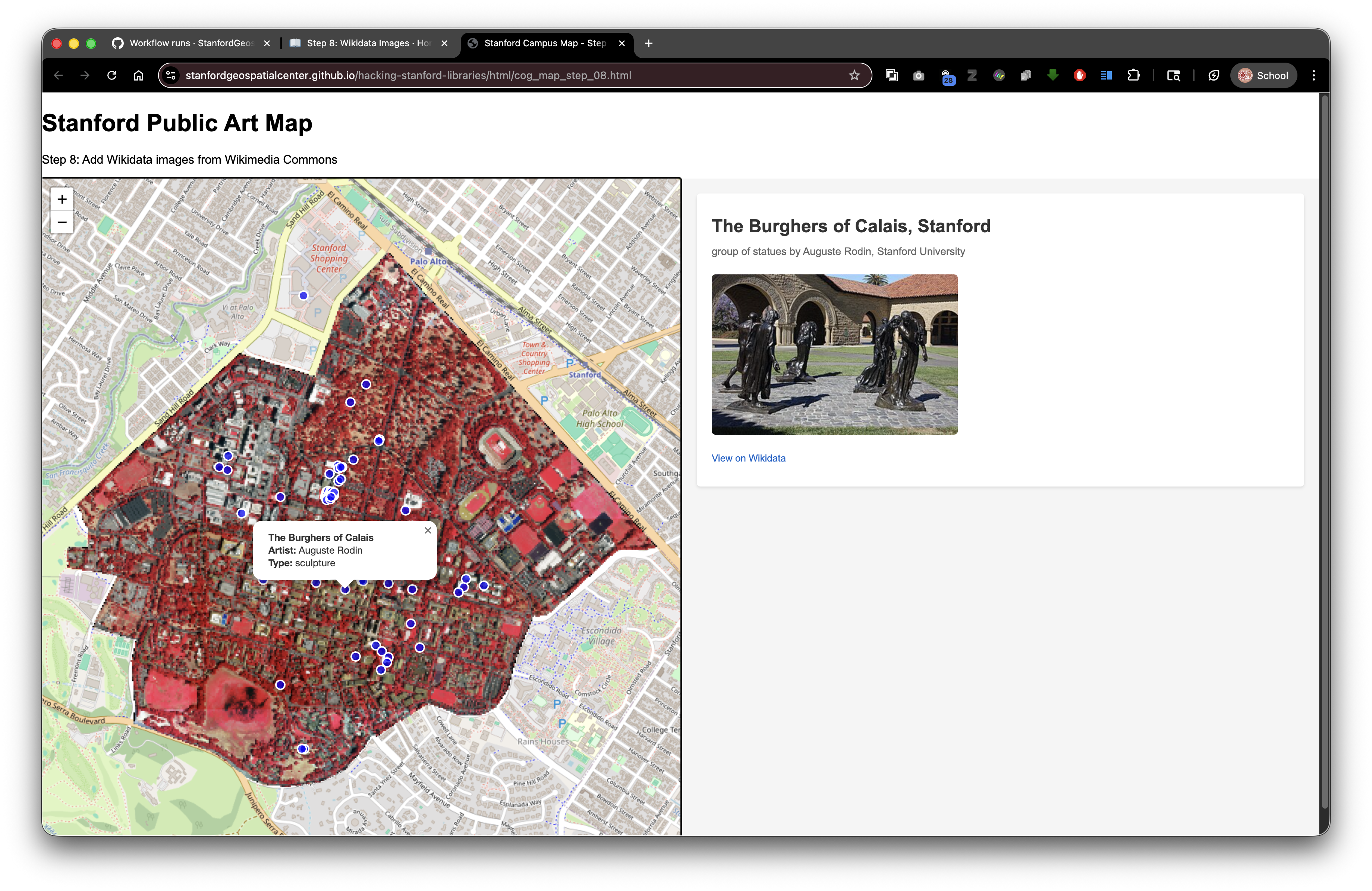
Overview
In this step, we'll enhance our application by fetching and displaying images of the artworks from Wikimedia Commons. Images make our application much more engaging and informative!
Learning Objectives
- Access Wikidata properties (specifically P18 for images)
- Construct Wikimedia Commons image URLs
- Work with helper functions for code organization
- Handle cases where images might not exist
- Display images in HTML dynamically
- Understand Wikimedia Commons URL structure
What is Wikimedia Commons?
Wikimedia Commons is a free media repository containing millions of freely usable images, videos, and other media files.
Key facts:
- Over 90 million files
- All files are free to use (various open licenses)
- Sister project to Wikipedia
- Integrated with Wikidata
Connection to Wikidata:
- Wikidata items can link to Commons files
- Property P18 = "image" (the main image for an item)
- Files stored on Commons, references stored in Wikidata
Understanding Wikidata Properties
Wikidata uses a property system where each type of information has a unique identifier:
| Property | Name | Description | Example Value |
|---|---|---|---|
| P18 | image | Main image of the subject | "Gay Liberation sculpture 04.jpg" |
| P170 | creator | Creator of the work | Mark di Suvero |
| P571 | inception | Date when created | 1985 |
| P186 | material | What it's made from | Steel |
| P276 | location | Where it is located | Stanford University |
Property P18 (image) is what we'll focus on in this step.
The Complete Code
<!DOCTYPE html>
<html lang="en">
<head>
<base target="_top">
<meta charset="utf-8">
<meta name="viewport" content="width=device-width, initial-scale=1">
<title>Stanford Campus Map - Step 8: Add Wikidata Images</title>
<link rel="stylesheet" href="https://unpkg.com/leaflet@1.9.4/dist/leaflet.css" integrity="sha256-p4NxAoJBhIIN+hmNHrzRCf9tD/miZyoHS5obTRR9BMY=" crossorigin=""/>
<script src="https://unpkg.com/leaflet@1.9.4/dist/leaflet.js" integrity="sha256-20nQCchB9co0qIjJZRGuk2/Z9VM+kNiyxNV1lvTlZBo=" crossorigin=""></script>
<script src="https://unpkg.com/proj4"></script>
<script src="https://unpkg.com/georaster"></script>
<script src="https://unpkg.com/georaster-layer-for-leaflet"></script>
<link rel="stylesheet" href="styles_wikidata.css">
</head>
<body>
<h1>Stanford Public Art Map</h1>
<p>Step 8: Add Wikidata images from Wikimedia Commons</p>
<div id="container">
<div id="mapWrapper">
<div id="map"></div>
</div>
<div id="wikidata-panel">
<div id="no-selection">Click on an artwork to see Wikidata information</div>
</div>
</div>
<script>
const map = L.map('map').setView([37.427, -122.169], 15);
const tiles = L.tileLayer('https://tile.openstreetmap.org/{z}/{x}/{y}.png', {
maxZoom: 19,
attribution: '© <a href="http://www.openstreetmap.org/copyright">OpenStreetMap</a>'
}).addTo(map);
// Helper function to get the image URL from Wikidata entity
function getWikidataImage(entity) {
// Check if the entity has any claims (properties)
if (!entity.claims) return null;
// Look for property P18 (image)
const imageClaims = entity.claims.P18;
// Check if P18 exists and has values
if (!imageClaims || imageClaims.length === 0) return null;
// Get the first image filename from the claims
const imageFilename = imageClaims[0].mainsnak.datavalue.value;
// Construct the Wikimedia Commons URL
// Special:FilePath automatically redirects to the actual image file
return `https://commons.wikimedia.org/wiki/Special:FilePath/${encodeURIComponent(imageFilename)}`;
}
// Function to fetch and display Wikidata content with images
async function displayWikidataInfo(wikidataId) {
const panel = document.getElementById('wikidata-panel');
try {
// Fetch the Wikidata entity in JSON format
const response = await fetch(`https://www.wikidata.org/wiki/Special:EntityData/${wikidataId}.json`);
const data = await response.json();
const entity = data.entities[wikidataId];
// Check if entity was found
if (!entity) {
panel.innerHTML = '<div id="no-selection">Wikidata not found</div>';
return;
}
// Begin building the HTML content
let html = '<div class="wikidata-content">';
// Get and display the image if available
const imageUrl = getWikidataImage(entity);
if (imageUrl) {
html += `<img src="${imageUrl}" alt="Artwork image" class="wikidata-image">`;
}
// Extract and display the label (name)
const label = entity.labels.en ? entity.labels.en.value : wikidataId;
html += `<div class="wikidata-label">${label}</div>`;
// Extract and display the description
if (entity.descriptions.en) {
html += `<div class="wikidata-description">${entity.descriptions.en.value}</div>`;
}
// Link to view the full Wikidata page
html += `<div class="wikidata-property"><a href="https://www.wikidata.org/wiki/${wikidataId}" target="_blank" class="wikidata-link">View on Wikidata</a></div>`;
// Close the div and update the panel
html += '</div>';
panel.innerHTML = html;
} catch (error) {
console.error('Error fetching Wikidata:', error);
panel.innerHTML = '<div id="no-selection">Error loading Wikidata information</div>';
}
}
var url_to_geotiff_file = new URL("collection/stanford_campus_irg.tif", window.location.href).href;
parseGeoraster(url_to_geotiff_file).then(georaster => {
console.log("georaster:", georaster);
fetch("collection/stanford_campus.geojson")
.then(r => r.json())
.then(maskGeojson => {
var layer = new GeoRasterLayer({
attribution: "Planet",
georaster: georaster,
resolution: 128,
mask: maskGeojson
});
layer.addTo(map);
map.fitBounds(layer.getBounds());
});
}).catch(console.error);
fetch('collection/stanford_public_art.geojson')
.then(response => response.json())
.then(data => {
const artworkLayer = L.geoJSON(data, {
pointToLayer: function(feature, latlng) {
return L.circleMarker(latlng, {
radius: 6,
color: 'white',
weight: 2,
fillColor: 'blue',
fillOpacity: 0.7
});
},
onEachFeature: function(feature, layer) {
const props = feature.properties || {};
const title = props.name || 'Artwork';
const artist = props.artist_name;
const type = props.artwork_type;
let popupContent = '<div style="min-width:200px;">';
popupContent += '<b>' + title + '</b><br>';
if (artist) popupContent += '<b>Artist:</b> ' + artist + '<br>';
if (type) popupContent += '<b>Type:</b> ' + type;
popupContent += '</div>';
layer.bindPopup(popupContent);
// Add click handler to display Wikidata info
layer.on('click', function() {
if (props.wikidata) {
displayWikidataInfo(props.wikidata);
} else {
document.getElementById('wikidata-panel').innerHTML = '<div id="no-selection">No Wikidata ID available for this artwork</div>';
}
});
}
}).addTo(map);
map.fitBounds(artworkLayer.getBounds());
})
.catch(error => console.error('Error loading GeoJSON:', error));
</script>
</body>
</html>
What's New?
1. Helper Function: getWikidataImage()
function getWikidataImage(entity) {
    if (!entity.claims) return null;

    const imageClaims = entity.claims.P18;

    if (!imageClaims || imageClaims.length === 0) return null;

    const imageFilename = imageClaims[0].mainsnak.datavalue.value;

    return `https://commons.wikimedia.org/wiki/Special:FilePath/${encodeURIComponent(imageFilename)}`;
}
What is a helper function?
- A function that performs a specific, reusable task
- Makes main code cleaner and easier to read
- Can be tested independently
- Promotes code reusability
Why create this helper?
- Image extraction logic is complex
- We might want to get images for multiple items
- Separates concerns (image handling vs. display)
- Easier to modify or debug later
2. Understanding Wikidata Claims Structure
Wikidata entities have this structure:
{
  "entities": {
    "Q47522966": {
      "labels": { "en": { "value": "The Sieve..." } },
      "descriptions": { "en": { "value": "sculpture..." } },
      "claims": {
        "P18": [
          {
            "mainsnak": {
              "datavalue": {
                "value": "The Sieve of Eratosthenes by Mark di Suvero.jpg"
              }
            }
          }
        ],
        "P170": [...],
        "P571": [...]
      }
    }
  }
}
Breaking down the structure:
claims- Object containing all propertiesP18- Array of image claims (usually just one)[0]- Get the first claim.mainsnak.datavalue.value- The actual filename
3. Checking for Existence
if (!entity.claims) return null;
Defensive programming - Always check if data exists before using it.
What could go wrong:
- Entity might have no claims at all
- P18 property might not exist
- P18 array might be empty
- datavalue might be missing
Each check prevents an error:
if (!entity.claims) return null;                        // Prevent: entity.claims.P18 when claims is undefined
if (!imageClaims || imageClaims.length === 0) return null;  // Prevent: accessing [0] on empty array
Return null = "No image available" (not an error, just missing data)
4. Getting Nested Array Data
const imageFilename = imageClaims[0].mainsnak.datavalue.value;
Why [0]? Some properties can have multiple values. P18 usually has just one image, so we take the first.
Path to the filename:
imageClaims           // Array of claims
  [0]                // First claim
    .mainsnak        // Main value (vs. qualifiers or references)
      .datavalue     // The actual data
        .value       // The filename string
5. Constructing Wikimedia Commons URLs
return `https://commons.wikimedia.org/wiki/Special:FilePath/${encodeURIComponent(imageFilename)}`;
Special:FilePath is a magic Wikimedia endpoint that:
- Accepts a filename
- Returns the actual image file (not the page)
- Handles redirects automatically
- Works with any size/format
Example:
Filename: "Gay Liberation sculpture 04.jpg"
URL: https://commons.wikimedia.org/wiki/Special:FilePath/Gay%20Liberation%20sculpture%2004.jpg
Result: Redirects to actual image file
6. URL Encoding
encodeURIComponent(imageFilename)
Why encode URLs?
- Filenames can contain spaces, special characters
- URLs need special characters escaped
- Prevents broken links
Examples:
encodeURIComponent("Artwork Image.jpg")
// Returns: "Artwork%20Image.jpg"

encodeURIComponent("Sculpture #5 (2020).jpg")
// Returns: "Sculpture%20%235%20(2020).jpg"
Characters that get encoded:
- Space →
%20 #→%23&→%26/→%2F
7. Displaying the Image
const imageUrl = getWikidataImage(entity);
if (imageUrl) {
    html += `<img src="${imageUrl}" alt="Artwork image" class="wikidata-image">`;
}
If imageUrl is null (no image available), we skip adding the <img> tag.
The img tag:
src- URL where the image is locatedalt- Text description (for accessibility, if image fails to load)class- CSS class for styling (defined in styles_wikidata.css)
CSS styling (in styles_wikidata.css):
.wikidata-image {
    width: 100%;
    height: auto;
    margin-bottom: 15px;
    border-radius: 8px;
}
Image Loading Flow
Step-by-step what happens:
- User clicks marker with Wikidata ID "Q47522966"
- displayWikidataInfo() called
- Fetch Wikidata entity data
- Parse JSON response
- Call getWikidataImage(entity)
- Check if claims exist → ✓
- Check if P18 exists → ✓
- Extract filename → "The Sieve of Eratosthenes by Mark di Suvero.jpg"
- Encode filename → "The%20Sieve%20of%20Eratosthenes%20by%20Mark%20di%20Suvero.jpg"
- Construct URL → "https://commons.wikimedia.org/wiki/Special:FilePath/The%20Sieve..."
- Return URL
- Add
to HTML with that URL
- Update panel with new HTML
- Browser requests image from Wikimedia Commons
- Image displays in the panel
Working with Wikimedia Commons
File naming on Commons:
- Descriptive names: "Gay Liberation sculpture 04.jpg"
- Multiple versions: "Sculpture_01.jpg", "Sculpture_02.jpg"
- Uploaded by users worldwide
- Can be renamed by administrators
Image licenses:
- Public domain
- Creative Commons (CC BY, CC BY-SA, etc.)
- Free to use for any purpose
- Attribution requirements vary
Image resolution:
- Special:FilePathreturns full resolution
- Can specify width:
Special:FilePath/image.jpg?width=500 - Commons stores multiple sizes
Try It Yourself
- Copy the complete code into a file named
step-08.html - Ensure you have
styles_wikidata.cssin the same directory - Open in your browser
- Click on artworks
You should now see images appear!
Experiments
Test the helper function in the console:
// Manually test with a known entity
fetch('https://www.wikidata.org/wiki/Special:EntityData/Q47522966.json')
    .then(r => r.json())
    .then(data => {
        const entity = data.entities.Q47522966;
        console.log('Image URL:', getWikidataImage(entity));
    });
Try different image sizes:
// Modify the helper function to accept a width parameter
function getWikidataImage(entity, width = null) {
    // ... existing code ...

    let url = `https://commons.wikimedia.org/wiki/Special:FilePath/${encodeURIComponent(imageFilename)}`;
    if (width) {
        url += `?width=${width}`;
    }
    return url;
}

// Use it:
const imageUrl = getWikidataImage(entity, 500);  // 500px wide
Handle missing images gracefully:
if (imageUrl) {
    html += `<img src="${imageUrl}" alt="Artwork image" class="wikidata-image">`;
} else {
    html += `<div class="no-image">No image available</div>`;
}
Add an image placeholder while loading:
html += `<img src="${imageUrl}"
         alt="Artwork image"
         class="wikidata-image"
         onerror="this.src='placeholder.png'">`;
Code Organization Best Practices
Why separate helper functions?
Before (everything in one function):
async function displayWikidataInfo(wikidataId) {
    // ... fetch code ...

    // Image extraction logic mixed in
    if (entity.claims && entity.claims.P18 && entity.claims.P18.length > 0) {
        const imageFilename = entity.claims.P18[0].mainsnak.datavalue.value;
        const imageUrl = `https://commons.wikimedia.org/wiki/Special:FilePath/${encodeURIComponent(imageFilename)}`;
        html += `<img src="${imageUrl}" ...>`;
    }

    // ... more display code ...
}
After (with helper):
async function displayWikidataInfo(wikidataId) {
    // ... fetch code ...

    const imageUrl = getWikidataImage(entity);
    if (imageUrl) {
        html += `<img src="${imageUrl}" ...>`;
    }

    // ... more display code ...
}

function getWikidataImage(entity) {
    // All image logic isolated here
}
Benefits:
- Easier to read and understand
- Can test
getWikidataImage()independently - Can reuse for multiple items
- Changes to image logic are isolated
- Main function stays focused on display
Connection to Digital Stacks
This works perfectly with SDR deposits because:
- External resources (Wikimedia images) load from anywhere
- No CORS issues - Commons serves images with permissive headers
- Relative paths still work for your GeoJSON/data
- JavaScript executesclient-side in the user's browser
Example deployed to SDR (DRUID: abc123xyz456):
https://stacks.stanford.edu/file/druid:abc123xyz456/index.html
│
├── Loads: styles_wikidata.css (relative path) ✓
├── Loads: collection/stanford_public_art.geojson (relative path) ✓
├── Calls: Wikidata API (external, absolute URL) ✓
└── Loads: Wikimedia Commons images (external, absolute URL) ✓
All four work together seamlessly!
Related resources:
- Stanford Digital Repository: https://sdr.stanford.edu/
- Stanford Libraries APIs: https://api.library.stanford.edu/
- Stanford Geospatial Center: https://gis.stanford.edu/
What's Next?
In Step 9: Complete Integration, we'll add even more Wikidata properties like artist names, dates, and materials to create a fully-featured artwork information display!
Key Takeaways
- Helper functions isolate complex logic and improve code organization
- Wikidata properties (like P18) are accessed through the claims structure
- Always check if data exists before accessing nested properties
- Wikimedia Commons provides free images accessible viaSpecial:FilePath
- URL encoding prevents broken links with special characters
- External image resources work seamlessly with SDR-hosted applications
- Images make applications more engaging and informative
Common Questions
Q: What if an item has no image?
A: The helper returns null, and we simply don't add an <img> tag. No error occurs.
Q: Can I use images from other sources?
A: Yes, but be careful about:
- Copyright/licensing
- CORS policies (some servers block cross-origin requests)
- Reliability (Commons is very stable)
Q: Why not download and include images in my deposit?
A: You could, but:
- Images can be large (increases deposit size)
- Images might update on Commons
- Using live links ensures latest versions
- Commons handles hosting/bandwidth
Q: Can I specify image size?
A: Yes! Add ?width=500 to the URL: Special:FilePath/image.jpg?width=500
Q: What if the image fails to load?
A: Use the onerror attribute: <img src="..." onerror="this.style.display='none'">
Q: Are there other image properties besides P18?
A: Yes! P154 (logo), P41 (flag), P94 (coat of arms), etc. P18 is the main image.
Previous: Step 7: Basic Wikidata | Next: Step 9: Complete Integration